
With great pleasure, “Plans” has been available in Power Apps for a few days.
But what is it and what can it do for me?
The official description is “A plan is an AI-based document that allows you to describe a business problem and generate a complete solution with apps, flows, and tables.”
Even though it is still in preview mode, it is certainly one of those features I have been waiting for a long time.
After logging into Power Apps, click on “Plans” and you will find yourself here:
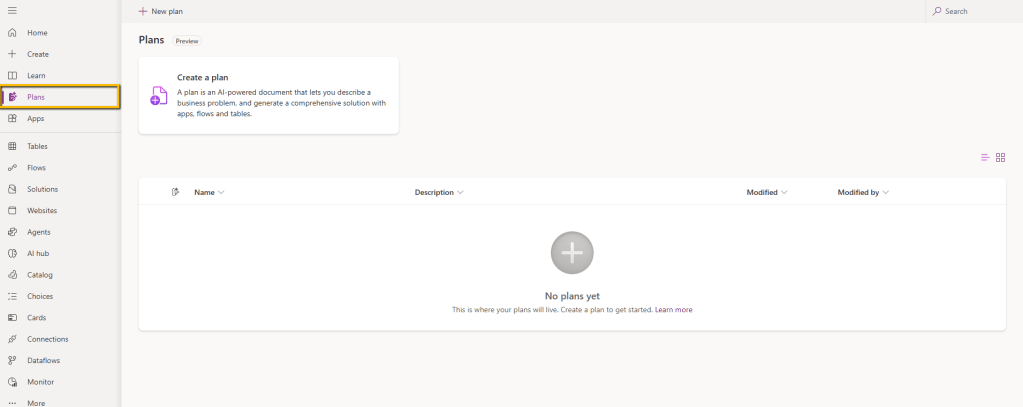
Clicking on “Create a plan” a box appears where you can describe your problem and get help or support from AI.
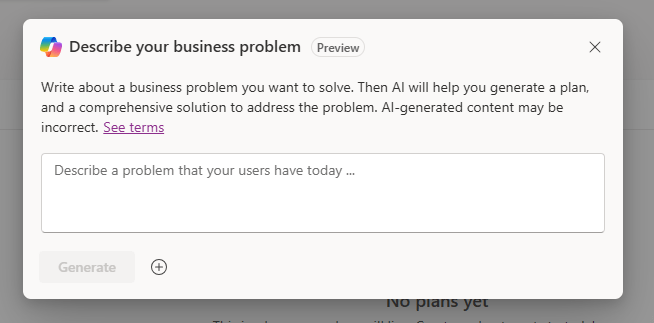
As we can see, we also have the possibility to attach documents.
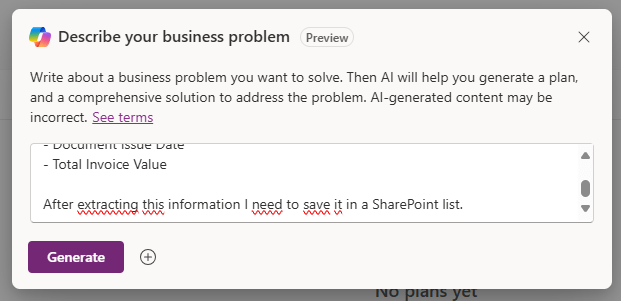
This is what I will write:
“I need to create a solution that allows me to manage various types of documents (mainly invoices or purchase orders). From these documents, I need to extract the main information:
- Customer/Supplier Name
- Customer/Supplier Address
- Document Issue Date
- Total Invoice Value
After extracting this information I need to save it in a SharePoint list.”
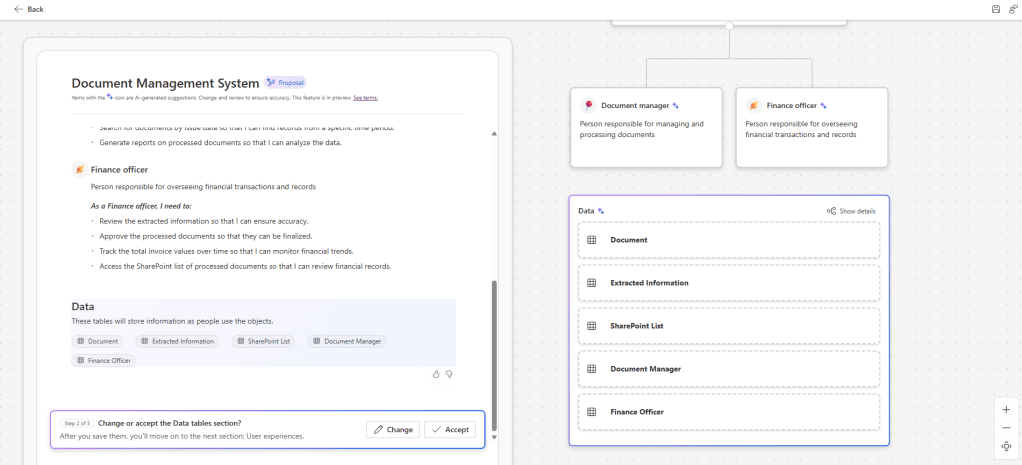
I click on “Generate” and am directed to another page where, on the left, the Document Management System suggests a proposal and on the right is the schema for an easier-to-read representation.
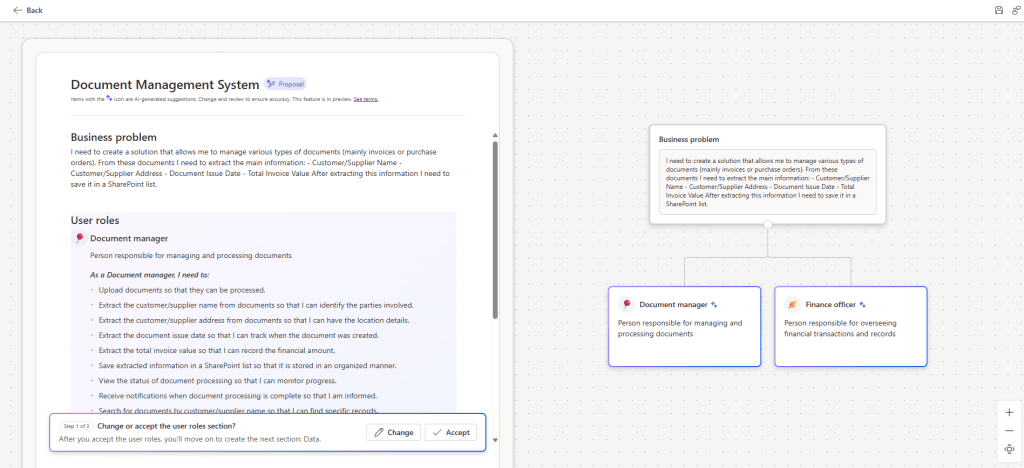
The following roles are defined and what each role can do:
- Document manager
- Finance officer
I click on “Accept” and continue.
The solution begins to take shape. We are now at the creation and management of the tables that are proposed to me as follows:
On the right by clicking on “Show details” in the “Data” box I also have the possibility to see how the tables will relate to each other.
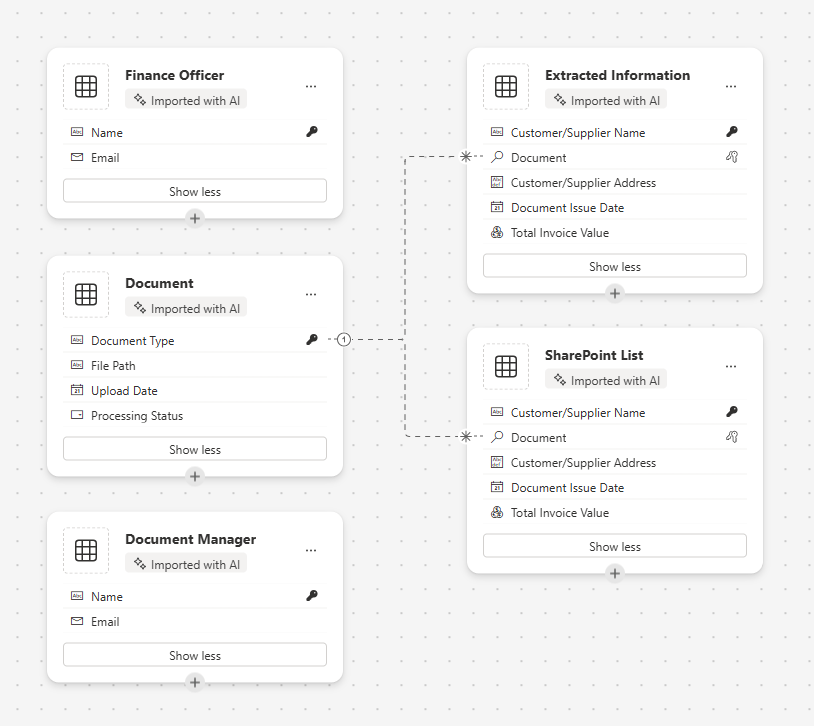
Without changing anything from what has been proposed to me so far, I proceed to the last step.
I click again on “Accept.”
I am in the final step related to “User experiences.” The management of this solution will contain 4 modules.
- Document Processing App
- Document Processing Notification
- Document Review App
- Document Report App

I click again on “Accept.”
At this point the modules (tables, apps, etc.) activate with a small “+” icon.
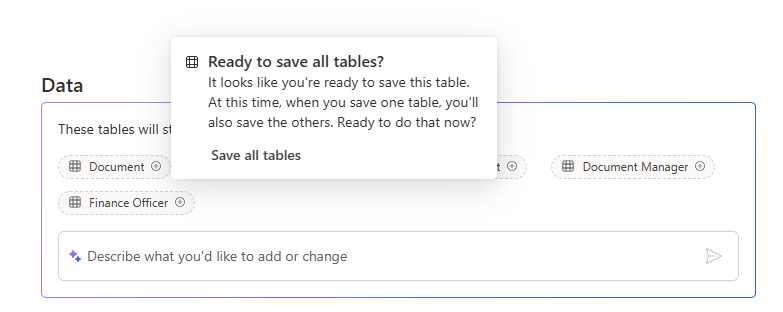
I have to save all the tables first. So I click on the first one and the following popup appears.
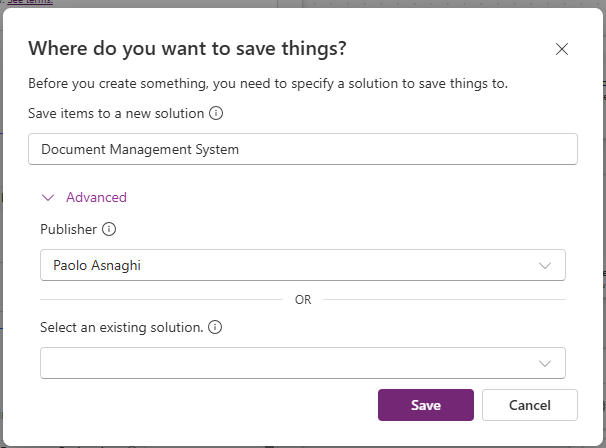
Consequently, I am asked for the solution that will contain everything.
I wait for the loading, while the tables are associated with the relevant apps and workflows.
I can finally select “Document Processing App,” for example, and see what happens.

Each module is autonomously loaded and made available in the solution we created.
In this final step apps and automations are generated just like when we ask Copilot to create something for us.
Being in Preview mode there are still things that don’t work perfectly or unexpected slowdowns in loading tables, apps, etc. but that’s not the point.
We know how much Microsoft is pushing these technologies, and the mere fact that every month some new functionality comes out makes it clear what the direction is.
There are 2 points to consider that I think are essential:
- The “Plan” remains saved in the appropriate section and remains available to the user as a real document.
- A solution is created that includes all the elements entered in the “Plan.”
A few clicks for a great solution with a plan available.
Boom Done 💣
Follow me:
 BEYOND THE PLATFORMS
Leave a comment