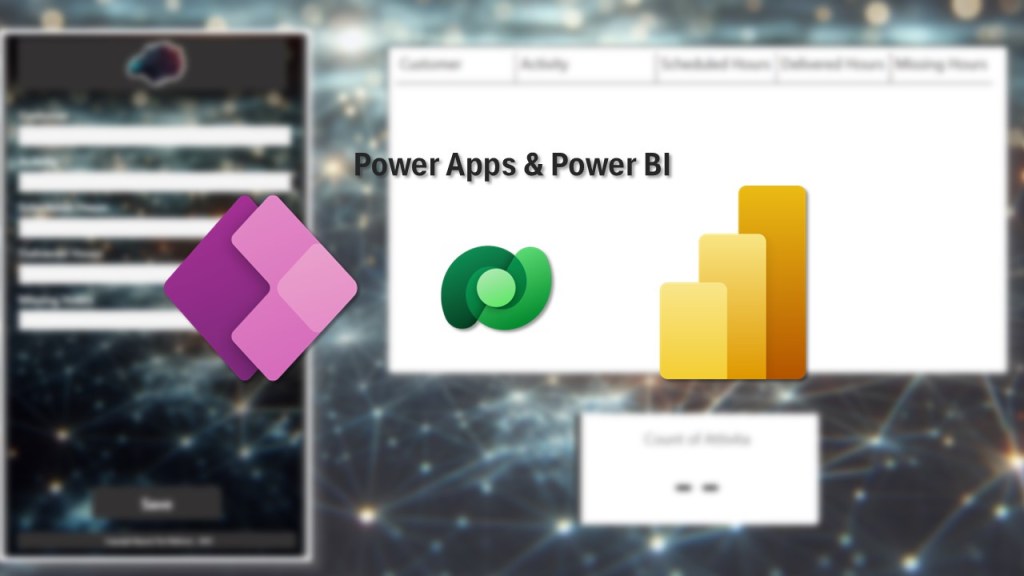
Have you ever tried to embed an application within a report?
I wanted to give it a test!
The steps are few and simple but the result is definitely effective and has definitely opened my mind to new possibilities.
I then created an application in Power Apps to simplify the management of jobs/activities and allow data to be entered and saved on a Dataverse table.
Data Infrastructure
For this test, I created a single table with 5 fields:
- Customer
- Activity
- Scheduled Hours
- Delivered Hours
- Missing Hours
In Power Apps, I use “Create new tables”.
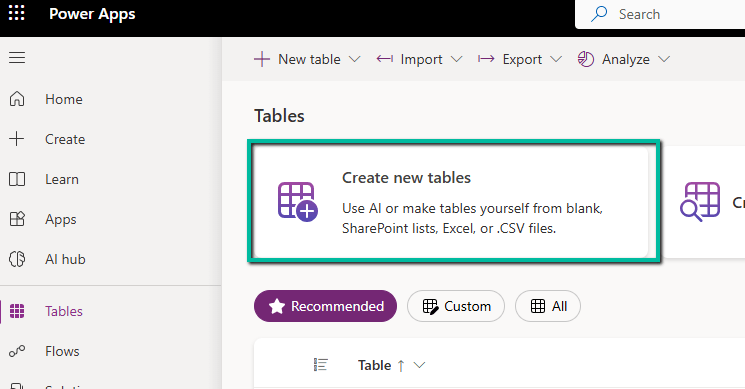
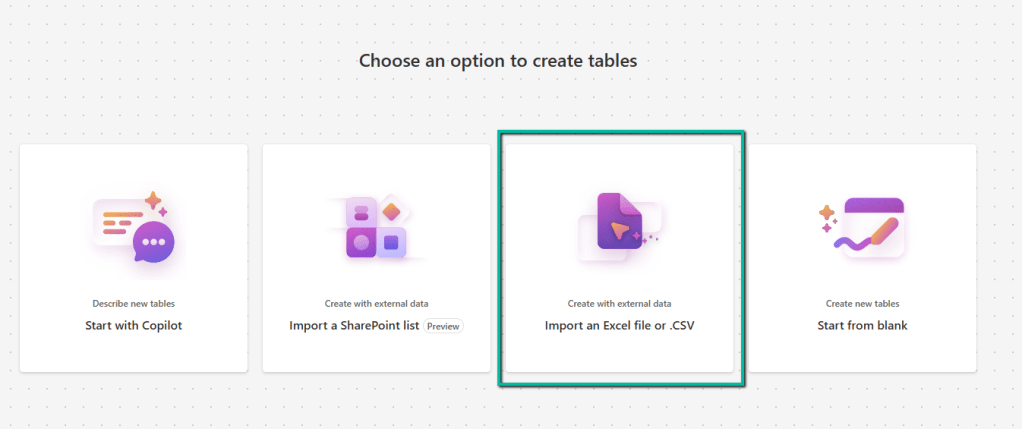
Selecting “Import an Excel or .CSV file” opens a popup
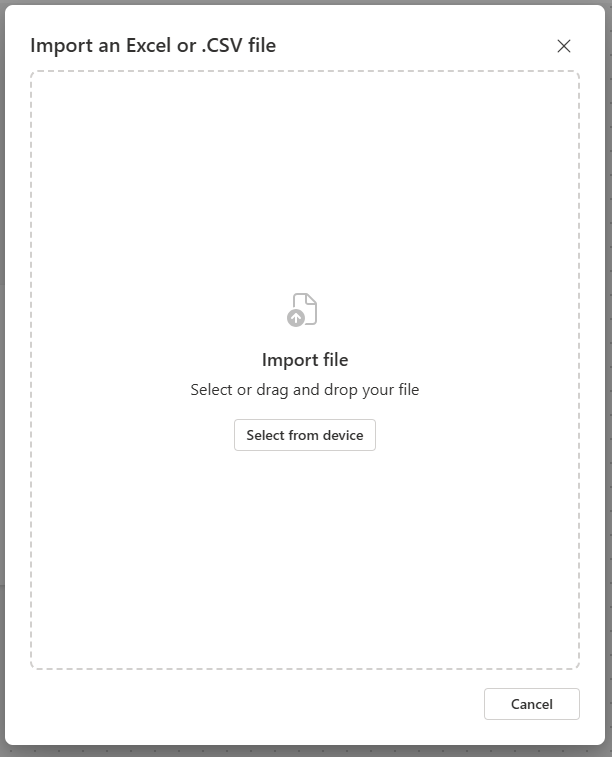
I select my starting file and wait for the load, which shows this.

I then click “Save and exit”.
App
The developed application has this form
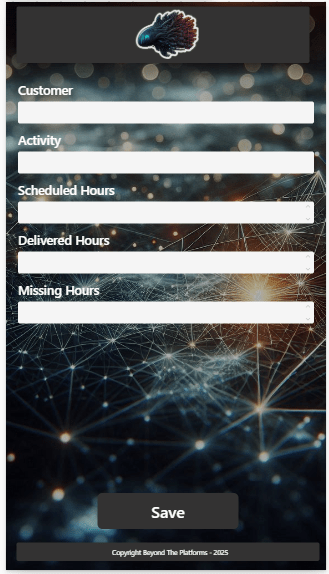
The “Save” button saves all fields within the Dataverse table.
Report
Opening a new report, there are mainly 3 things to do:
- Embed the app.
- Create a tabular visual that shows the data entered by the app.
- Enable the “Page refresh” setting.
To embed the app, just select the visual object “Power Apps for Power BI” and select the created and published app.
Even for creating the table, it is very simple and depends on what we want to show. In my case, I just need to create something to show the new records added.
The important point is the “Page refresh”.
A feature that allows activating an auto-refresh.
This setting is found in the “Visualizations” panel.
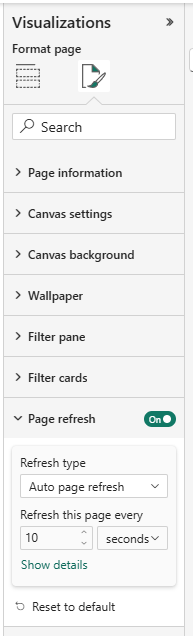
What I need is an almost real-time refresh, so I just need to configure it to 10 seconds.
Once these steps are done, I save and publish the report.
What happens at this point?
You can see the result in the video on my YouTube channel
Boom Done 💣
Follow me:
 BEYOND THE PLATFORMS
Leave a comment