
If you have never tried to configure and publish an Agent for Teams and Microsoft 365, this is the guide for you!
First of all, let’s understand how to extend Microsoft 365 Copilot with an Agent.
We have 2 different ways to add agents to Microsoft 365 Copilot:
- Declarative agents: These are a collection of custom knowledge hosted in the Microsoft 365 Copilot orchestration agent.
- Custom engine agents: These are developed using base models and custom orchestration agents and can be tailored to the specific business needs with their own stack.
A few months ago, during a live broadcast, I showed how to navigate within Copilot Studio. The features are many and many more are coming.
If you want to watch the video, I leave you the link here:
Today I will pick up that agent again to show how to make it available in Teams and Microsoft 365 Copilot.
I am a movie lover, so as you will see from the video, our Agent has all the resemblance of Agent Smith from a famous movie from a few years ago.
The agent will need to respond and assist the user at every stage of the corporate onboarding process.
I uploaded 3 Word files in the example, which contain various information.
But let’s get to the point.
How do I connect the agent to Teams and Microsoft 365?
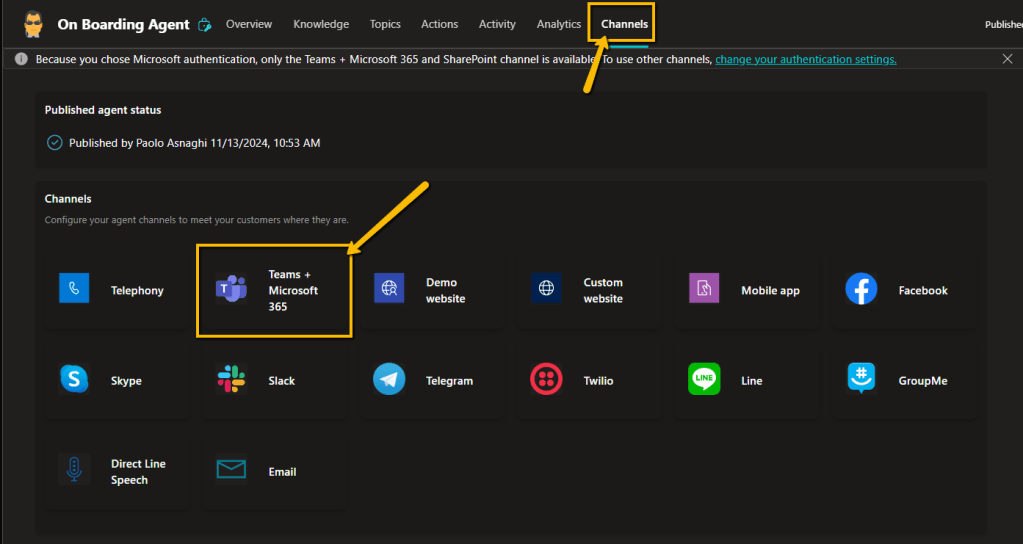
Select the “Channels” panel and then “Teams + Microsoft 365”
If you want to make the agent available on both platforms, select “Make agent available in Microsoft 365 Copilot chat”
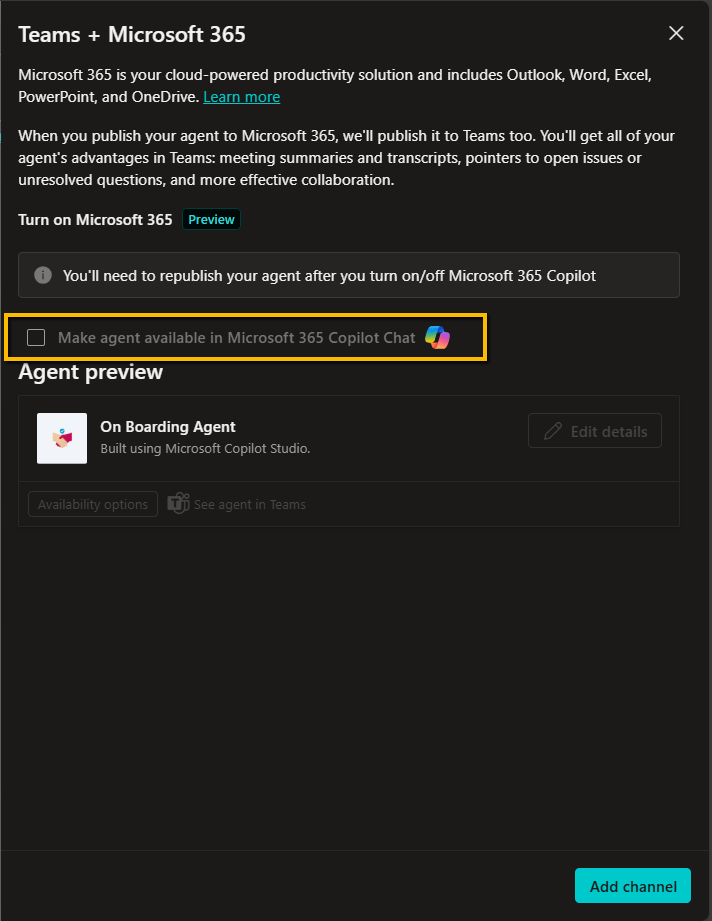
Then click on “Add channel”.
At this point the agent is ready to be shared and published, but another step is necessary.
By clicking on “Availability options”, we choose to use “Show to everyone in my org”.

Now we need to request final approval.
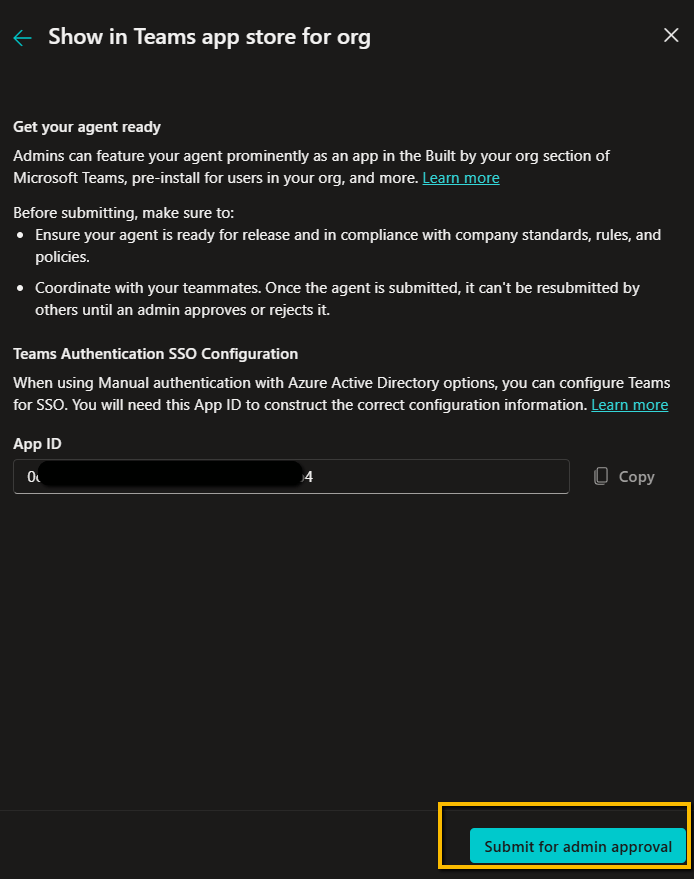
We must wait for approval from a tenant admin.
Agent Approval:
To approve an agent, you need to go to the Teams administration interface, with the necessary permissions and roles to approve the request.
It is very simple as you need to go to the following URL:
https://admin.teams.microsoft.com/
Go to “Manage apps” and confirm the request received.
It will always be up to the admin to definitively publish the agent.
From this link are all the steps:
https://learn.microsoft.com/en-us/microsoft-copilot-studio/publication-add-bot-to-microsoft-teams
And now?
Just access Teams or Microsoft 365 Copilot and click on “Get agents”.
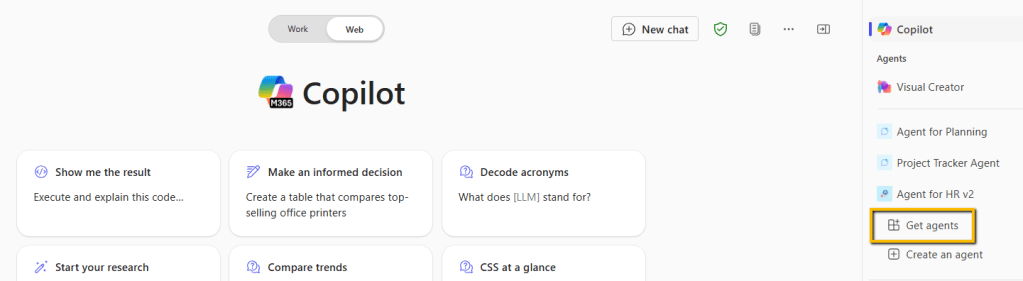
Search for the agent in the screen that appears and…
Boom Done 💣
Follow me:
 BEYOND THE PLATFORMS
Leave a comment