
In the end, it always comes back to analysing data.
Over the past year, I have developed several agents and AI Assistants which have brought innovation to a new level. Copilot Studio is a highly advanced tool in various respects, enabling you to do much more than most people realise.
Today, I want to talk about Analytics and how we can analyse information and improve our agent simply by observing the data and correcting its behaviour.
Where are we?
Let’s assume our agent is ready to be published and used. TRUE user feedback .
Within Copilot Studio, there is a panel called Analytics which displays data for an initial analysis.
Analytics
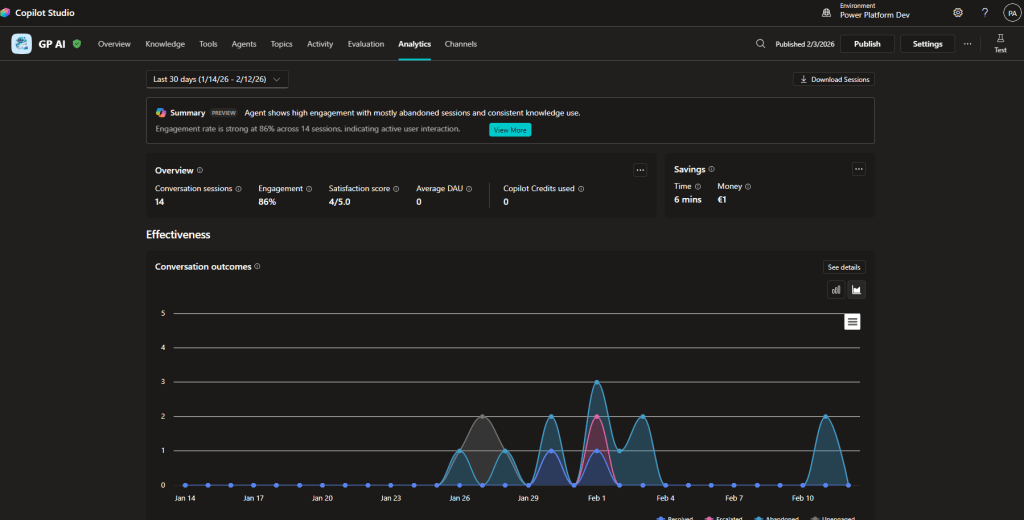
Note: Analyses are not available for activities completed in test mode within Copilot Studio.
Once the first feedback is received, these data are processed and displayed.
Summary:
Using Copilot generates a summary of the main analyses.
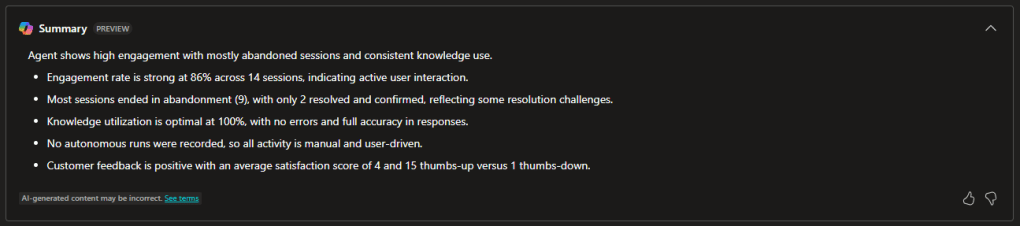
Overview:
The first high-level data appear here and monitor user engagement with your agent, attempting to understand how well your agent handles tasks.

Note: Depending on their functions, an agent can be conversational or autonomous, and this aspect is also reflected in the analytics, where we may see different types of analyses.
Effectiveness:
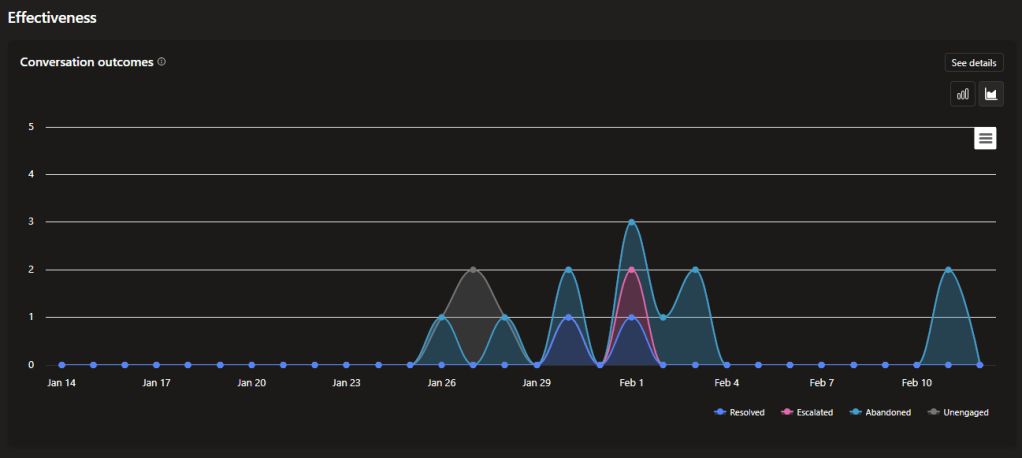
A chart showing the outcome type for each session between your agent and users.
- Resolved
- Escalated
- Abandoned
- Unengaged
Here, we have the possibility to delve a little deeper; in fact, by clicking “See details”, a panel opens on the right where you can find some truly useful information.
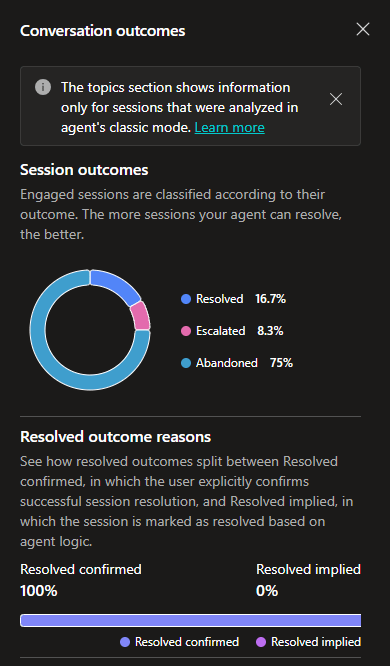
Let me focus on one aspect. Resolved outcomes are divided between “Confirmed resolved”, where the user explicitly confirms the resolution, and “Implicit resolved”, where the session is marked as resolved according to the agent’s logic.
The same applies for “Escalated” outcomes, with the only difference being that results are distributed among “Intentional escalations” led by agents, “Requested escalations” by users, and “Unintentional escalations” caused by technical issues.
Use:
Here, you will find “Generated answer rate and quality”. Although still in preview, it is an essential analytics tool because it tracks the agent’s performance in answering users’ questions.
“Answer rate” shows the number of questions answered and unanswered within the selected period and the percentage change over time.
“Answer quality” measures the quality of answers using AI. Copilot Studio examines a set of questions that have been answered and analyses various qualities, including completeness, relevance, and the robustness of an answer. If the answer meets a set standard, Copilot Studio labels it as Good quality. Copilot Studio labels answers that do not meet this standard as Poor quality. For poor answers , Copilot Studio assigns a reason for the quality rating and shows the percentage of answers assigned to each category.
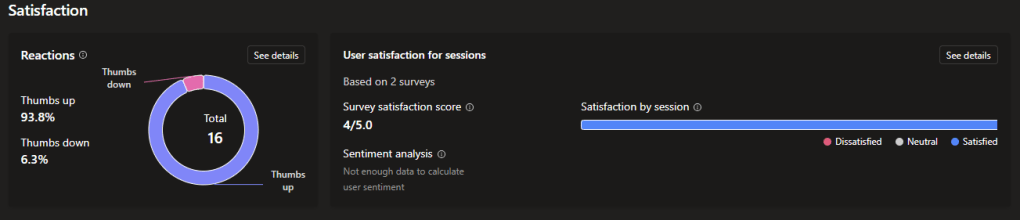
Satisfaction
Here you will find “Reactions”, which shows user feedback gathered from reactions to agent responses and from survey results for a session.
And “User satisfaction for sessions”, which displays information on user satisfaction based on survey results and AI analysis of sentiment in a sample of sessions.
Some important notes
There are sometimes small or big differences between “USA Based” environments and others (for example, Italy). This results in discrepancies between Microsoft’s official documentation and what we actually see in our environment.
But don’t worry! Microsoft is constantly releasing new features.
How to concretely improve an agent after analysing the data
Start with conversational outcomes
- Do many sessions end in Abandoned? → Improve the instructions or add clarification where users tend to drop off.
- Are there many unintentional Escalations? → Review the fallbacks, triggers, or malfunctioning tools.
Improve poor answers (Answer Quality)
Analytics tells you why an answer is labelled as poor:
- incompleteness
- irrelevance
- poor robustness
To improve:
- strengthen the agent’s instructions
- add examples
- expand the knowledge source
- better specify the context in the prompt instructions
Review the Knowledge Base
If the agent misuses sources or gets the topic wrong:
- improve the organisation of documents
- make only the correct sources official
- avoid redundant content
- add direct links and thematic sections
Improve the Tools
If the data show that a tool often fails:
- review the configuration
- clarify parameters
- add instructions explaining when to activate it
Work on engagement (Engagement Rate)
A session is considered engaged when it enters a real topic.
If engagement is low:
- make it clearer what the agent can do
- optimise the welcome message
- add more specific topics
- use examples and suggested questions
Continuously optimise and test
With the new Agent Evaluation feature, you can:
- simulate hundreds of interactions
- test answers
- check accuracy, completeness, and tone
This drastically reduces errors and accelerates improvement.
Do you want to take your agent to the next level?
Contact me.
Boom, done 💣!
Follow me:
 BEYOND THE PLATFORMS
Leave a comment