If your Copilot Studio agent responds using the wrong document, the problem may not be the model. It may be the way you organized knowledge in SharePoint.
When we connect a SharePoint library to an agent, we tend to focus on the files: which documents to upload, which sites to connect, how to formulate the instructions. But in an enterprise scenario, it is not enough for the content to exist. The agent must also understand which content applies to that specific request.
An HR policy may vary by country. An IT procedure may depend on the product version. A legal document may be valid only for a specific jurisdiction or only when its status is “Approved.” If these differences exist only in file names, folders, or in the minds of those who manage the library, retrieval is already at a disadvantage.
The Real Problem: Searching Does Not Mean Understanding Context
Imagine a library containing vacation policies for Italy, France, Germany, and Canada. When asked, “What is the vacation policy?”, a search based only on text may find several semantically similar documents. The result may be an answer that is correct in the abstract but wrong for the user.
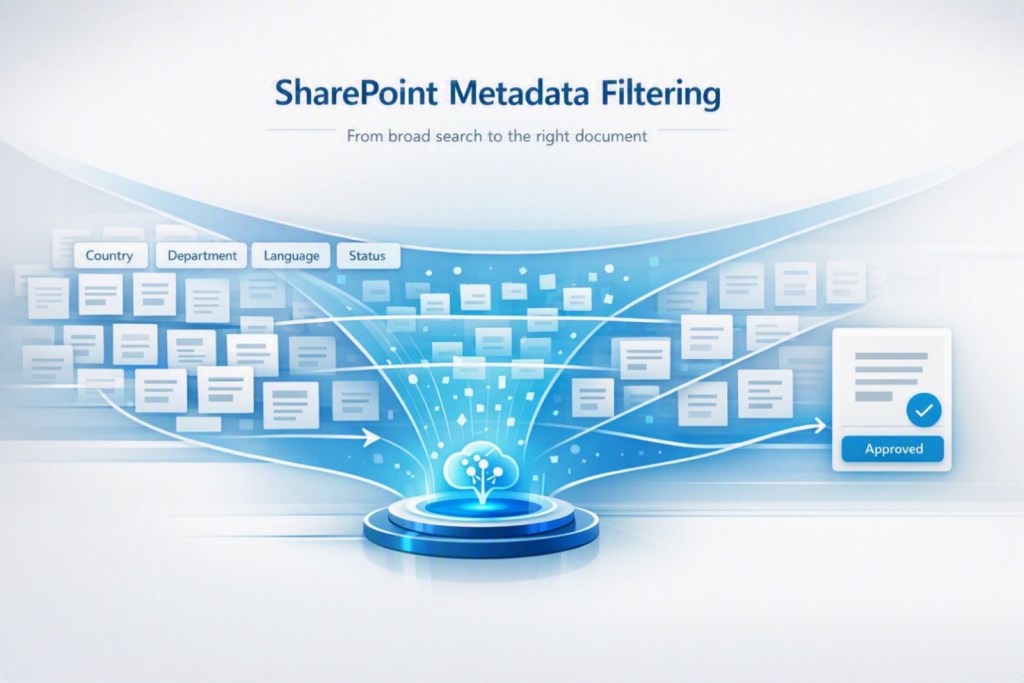
This is where SharePoint metadata comes into play. Columns such as Country, Department, Language, Product, Version, Status, or Validity Year transform a collection of files into a knowledge base that can be queried using business criteria.
From Hardcoded Routing to Agent Decisions
In the traditional model, content is separated by building dedicated topics, conditions, and branches: if the user is Italian, use this source; if they belong to HR, use another one; if they are talking about product X, direct them to a specific URL. It works, but each new category brings additional configuration, testing, and maintenance.
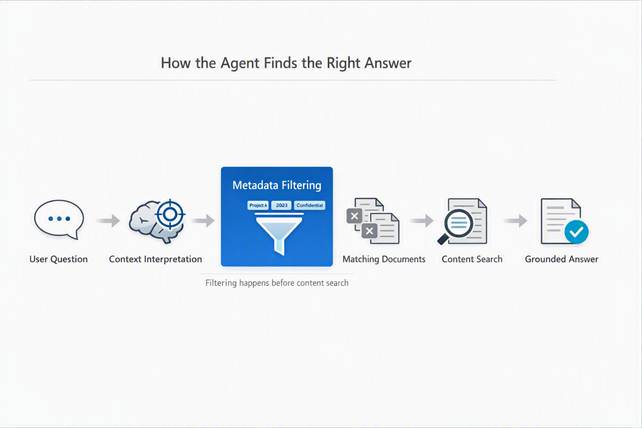
With agents based on the GitHub Copilot harness, the pattern changes: the agent can interpret the request, identify the relevant metadata values, find compatible files, and search for the answer only within that scope. It is therefore not limited to finding content that contains a word: it can also use information stored in the library columns, even when it does not appear in the document text.
This is an important architectural difference: less conversational logic tailored to individual cases and more context declared directly in the knowledge base.
A Concrete Example
An employee asks: “Which parental leave benefits apply in Canada?” The word “Canada” may not appear in the policy because the country is recorded exclusively in the Country column.
A content-only search may miss the correct file or combine documents intended for different markets. With metadata, the agent can first select files where Country = Canada and then search that subset for information about parental leave.
Three Use Cases Where the Pattern Creates Value
- Multinational HR: filtering by country, company, and language prevents an employee from being shown a policy belonging to a different regulatory context.
- IT Support: filtering by product, version, and platform reduces the risk of suggesting a technically valid procedure that is incompatible with the user’s environment.
- Legal and Compliance: filtering by jurisdiction, approval status, and validity period helps the agent work only with applicable and current documents.

How to Design the Solution
1. Start with the Decisions the Agent Must Make
Do not create columns “because they might be useful.” Instead, list the questions that determine whether a document applies: for which country? For which role? For which product? Is it approved? From when is it valid? The metadata must represent these decisions.
2. Use Controlled Values
Choice, Lookup, and Content Type columns reduce variants such as “Italia,” “IT,” and “Italy.” Filter quality depends on value consistency: incomplete or ambiguous metadata produces an equally incomplete or ambiguous scope.
3. Verify Indexing and Managed Properties
The metadata must be available to search. In scenarios with advanced filters, you need to check the mapping to managed properties and verify that they are queryable; after schema changes, it may be necessary to reindex the library or site.
4. Define Where the Context Comes From
The country, department, or product may emerge from the question, the user profile, a short onboarding phase, or external systems such as HR, CRM, and business applications. Avoid asking users for information the system already knows, but make the context transparent when it can change the answer.
5. Test Negative Cases as Well
Do not only verify that the agent finds the correct document. Check that it excludes outdated, unapproved documents, documents belonging to other countries, or documents the user cannot access.
Good retrieval is also measured by what it leaves out.
Governance: Metadata Becomes Part of the Contract
When the agent makes decisions using SharePoint columns, the library schema is no longer an administrative detail: it becomes part of the solution architecture. Renaming a column, changing a value, or no longer populating an attribute can change the agent’s behavior.
This requires shared governance among content owners, the SharePoint team, and Copilot Studio makers: schema ownership, completion rules, versioning, regression testing, and consistent transport across development, testing, and production. In addition, relevance filtering does not replace security: the agent must continue to respect user permissions and supported sensitivity labels.
The Essential Checklist
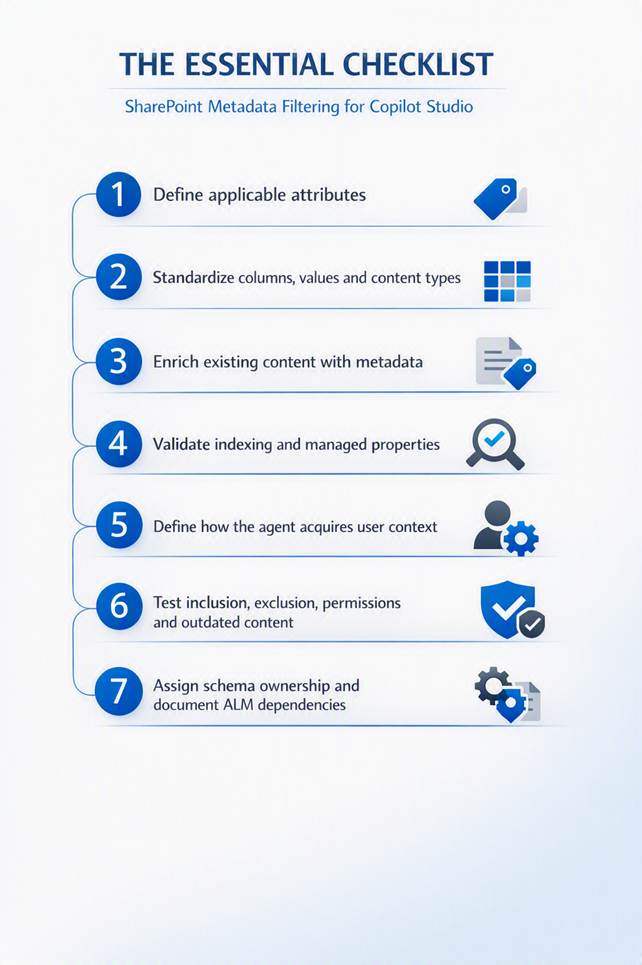
- Define which attributes make a document applicable.
- Standardize columns, values, and Content Types.
- Populate metadata for existing content as well.
- Verify indexing and managed properties.
- Establish how the agent acquires the user’s context.
- Test inclusions, exclusions, permissions, and outdated content.
- Assign an owner to the schema and document ALM dependencies.
Beyond the Prompt
The quality of an enterprise agent does not depend only on the prompt or the model. It depends on the quality of the decisions it can make before generating a response. SharePoint metadata filtering brings this logic to the right place: the knowledge structure.
Therefore, if you are designing a Copilot Studio agent with SharePoint as its knowledge base, do not start with the list of topics. Start with the context questions and the metadata needed to answer correctly. A good information architecture can eliminate dozens of hardcoded branches and make the system easier to extend, govern, and test.
Have you already connected a SharePoint knowledge base to an agent? How did you structure the metadata to improve the relevance of the responses? Let’s discuss it in the comments.
Follow me:


Leave a comment